Use this process to correct the date range used during cashbook reconciliation. This ensures transactions align with the correct accounting period.
Steps
- Go to Accounts
- Select Cashbook
- Click Reconcile
- Select Change Dates

- Enter the new opening and closing dates
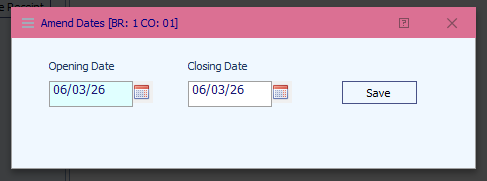
- Confirm your changes by pressing Save
Important Checks Before You Amend Dates
- Do not set dates that fall within a period already reconciled
- Open the Cashbook screen
- Select Print
- Review previous reconciliations
- Confirm the new date range has not been used before
Why This Matters
- Prevents duplicate or overlapping reconciliations
- Protects the accuracy of your financial records
- Avoids discrepancies during audits or reporting
- Keeps your cashbook aligned with actual transaction periods
Was this article helpful?
That’s Great!
Thank you for your feedback
Sorry! We couldn't be helpful
Thank you for your feedback
Feedback sent
We appreciate your effort and will try to fix the article