You need a clear way to confirm what changed on a stock record and who made the change. This helps you track errors, confirm updates, and keep audits simple.
Overview
Navigator records a wide range of stock record changes. This includes date changes and data changes. You can view these entries through the audit screen.
When to use this
• You suspect a record was updated.
• You need to confirm when a change happened.
• You need detail for an internal audit or correction.
Steps
Go to Vehicles.
Open Vehicle Administrator Toolkit.
Load the stock number you want to review.
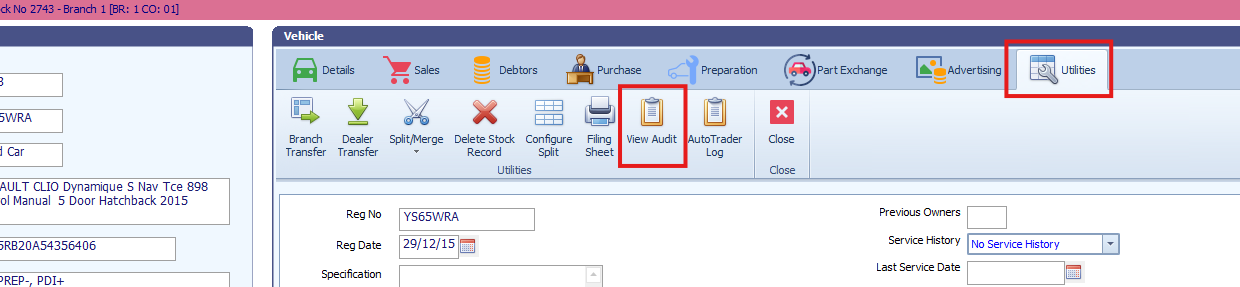
Go to Utilities.
Select View Audit.
Result
You see a full list of audited changes for the stock record. This includes the field changed, the old value, the new value, and the user who made the change.
Was this article helpful?
That’s Great!
Thank you for your feedback
Sorry! We couldn't be helpful
Thank you for your feedback
Feedback sent
We appreciate your effort and will try to fix the article