Turning Vehicle Health Checks into Revenue
The Klarna integration within Navigator provides dealerships with a flexible payment solution, allowing customers to spread the cost of their workshop invoices rather than paying the full amount upfront.
Unexpected repair costs are often a significant factor in customers declining or postponing recommended work, particularly when additional repairs are identified during a Vehicle Health Check (VHC).
By introducing flexible payment options at the point of presenting recommended work, dealerships could improve Vehicle Health Check conversion rates by up to 25%, unlocking additional aftersales revenue whilst delivering a better customer experience.
Rather than losing a sale because of an unexpected expense, service advisors can offer customers an alternative way to pay, directly through Navigator.
Benefits of Using Klarna
Improve VHC conversion rates – Convert more recommended repairs into authorised work.
Increase aftersales revenue – Reduce the number of repairs declined due to immediate financial constraints.
Increase average invoice values – Give customers the flexibility to authorise additional work during their existing workshop visit.
Improve customer retention – Reduce the likelihood of customers taking recommended repairs elsewhere.
Improve workshop efficiency – Complete more work whilst the vehicle is already on site.
Enhance the customer experience – Give customers greater control over how they manage unexpected motoring expenses.
Seamless integration – Manage finance requests, approval statuses and remaining payments directly within Navigator, without the need to switch between systems.
1. Accessing Klarna
Open the relevant workshop job and select Klarna.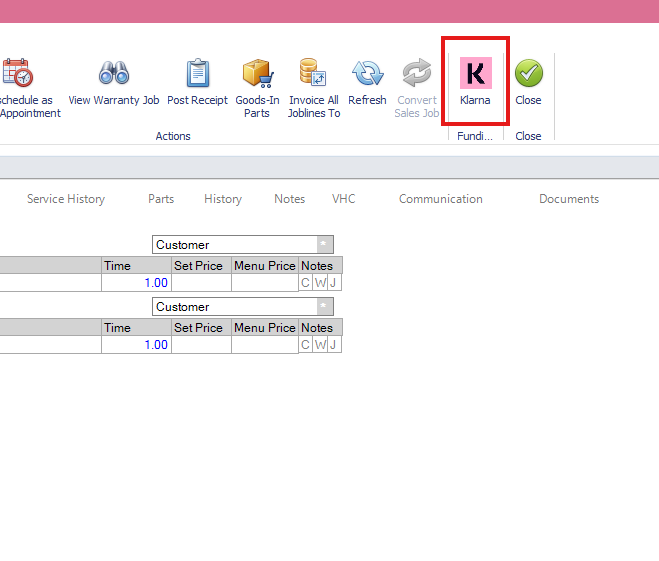
This will open the Split Payment - Request Data window, displaying the customer's contact information, address details and a section called Split Payment Items.
Check that the customer's details are correct before continuing.
2. Adding Items to the Finance Request
Within the Split Payment Items section, complete the following fields:
Item Description – Enter a description of the item or service being financed.
Quantity – Enter the relevant quantity. This is particularly useful when itemising individual parts.
Item Price – Enter the price of the item being financed.
Once the details have been entered, select Add.
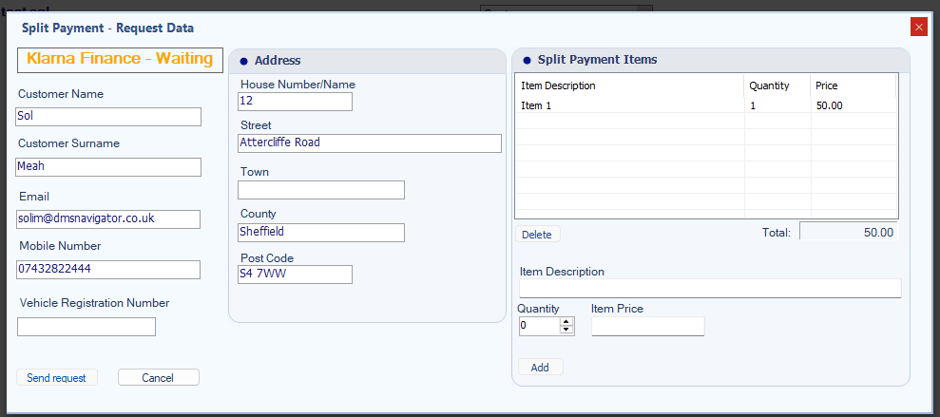
Repeat this process until all items that the customer wishes to finance have been added.
The Total field will display the combined value of the items included in the finance request.
Customers can choose to finance all or part of their workshop invoice. For example, they may wish to pay for their scheduled service upfront but spread the cost of additional repairs identified during their Vehicle Health Check.
3. Submitting the Finance Request
Once all the relevant items have been added and the total has been confirmed, select Send request.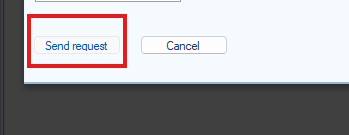
The request will then be submitted to Klarna for authorisation.
The time taken for the request to be approved will depend on Klarna's own approval process.
4. Monitoring the Finance Request
The status of the finance request can be monitored directly within Navigator by reopening the Klarna window from the workshop job.
The status is displayed in the top-left corner of the window.
Klarna Finance - Waiting – The finance request has been submitted and is awaiting approval.
Approved – The finance request has been successfully authorised.
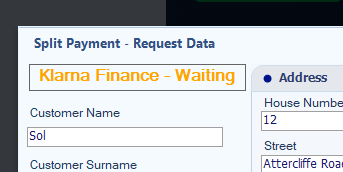
In the example above, a single item with a value of £50.00 has been submitted to Klarna. The orange Klarna Finance -
Waiting indicator confirms that the request is currently awaiting approval.
Always confirm that the finance request has been approved before proceeding on the basis of Klarna payment.
5. Invoicing and Releasing the Workshop Job
Once the finance request has been approved and the workshop job has been invoiced, the job can be released as normal.
Within the Release Job window, Navigator will automatically account for the amount being financed through Klarna and calculate the remaining amount to be collected directly from the customer.
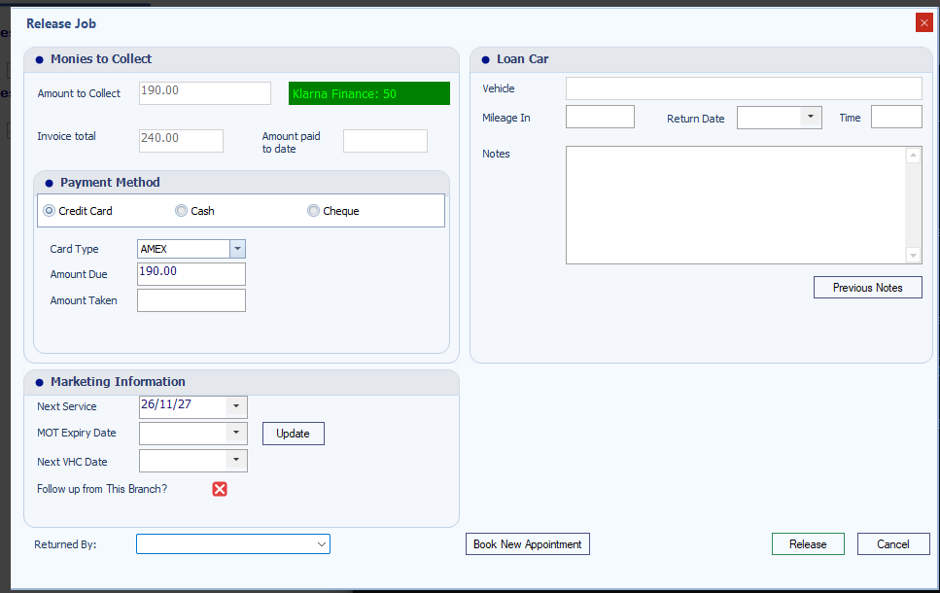
In the example above, the customer's workshop invoice totals £240.00, of which £50.00 is being financed through Klarna.
| Description | Amount |
|---|---|
| Total workshop invoice | £240.00 |
| Amount financed through Klarna | £50.00 |
| Remaining amount to collect | £190.00 |
The financed amount is clearly highlighted in green within the Monies to Collect section, displaying Klarna Finance: 50.
Navigator automatically reduces both the Amount to Collect and Amount Due to £190.00, meaning the dealership only needs to collect the remaining balance directly from the customer.
The remaining payment can then be processed and the workshop job released as normal.
Maximising the Commercial Benefits of Klarna
To maximise the benefits of Klarna, dealerships should proactively introduce flexible payment options throughout the customer journey, particularly when:
Presenting Vehicle Health Check findings.
Discussing unexpected repair costs.
Providing quotations for larger repairs.
Recommending additional maintenance.
Discussing work that a customer is considering postponing due to cost.
Flexible payment options should not simply be introduced at the point of payment. By making customers aware of the available options when presenting recommended work, dealerships have an opportunity to influence conversion before the customer decides whether to proceed.
All finance requests are subject to Klarna's approval and applicable terms.
More Than Just a Payment Method
Klarna is more than an additional payment method within Navigator. It is a commercial opportunity for dealerships to grow their aftersales revenue, improve workshop productivity, increase Vehicle Health Check conversion rates and strengthen customer relationships.
By removing the need for customers to pay the entire cost upfront, dealerships can help turn more recommendations into completed repairs, whilst managing the entire process directly within Navigator.
Was this article helpful?
That’s Great!
Thank you for your feedback
Sorry! We couldn't be helpful
Thank you for your feedback
Feedback sent
We appreciate your effort and will try to fix the article