If the salesperson is incorrect, sales reporting and commission calculations will be wrong. Updating it at the right stage keeps sales performance data accurate.
When You Use This
Use this before invoicing and delivery if the vehicle was assigned to the wrong salesperson.
Process Overview
Confirm the stock record is not invoiced or delivered.
Open the stock record.
Go to the Sales tab.
Change the salesperson.
Save and close.
Detailed Steps
Open the relevant stock record.
Check that the vehicle has not been invoiced or delivered. If it has, you cannot amend the salesperson.
Select the Sales tab.
Find the Salesman field.
Click the three dots next to the field.
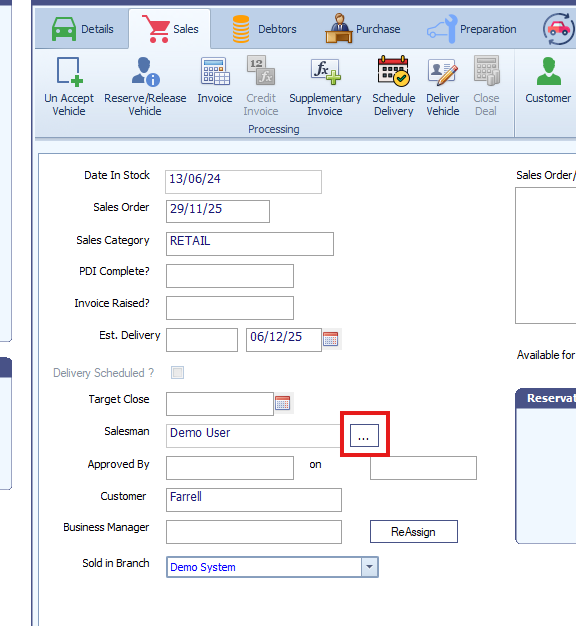
Choose the correct salesperson from the dropdown list.
Save the record.
Was this article helpful?
That’s Great!
Thank you for your feedback
Sorry! We couldn't be helpful
Thank you for your feedback
Feedback sent
We appreciate your effort and will try to fix the article