You can configure the system to automatically notify a Sales Manager whenever a new order is raised. This ensures your leadership team has real-time visibility over incoming business.
Configuration Steps
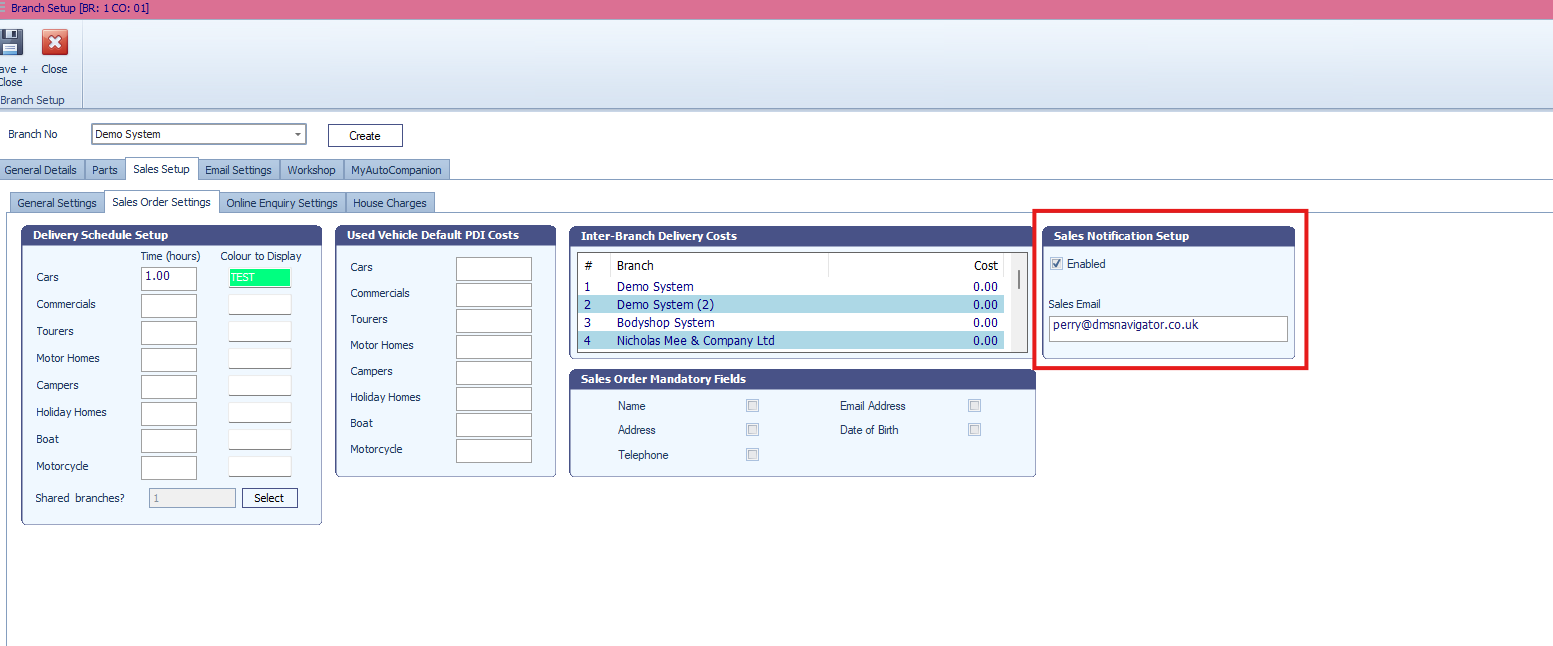
Navigate to Settings: Go to Setup > Branch Setup > Sales Setup.
Access Order Settings: Select the Sales Order Settings tab.
Enable Notifications: Locate the notification section and tick the enable box.
Assign the Recipient: In the Sales Email field, enter the email address of the Sales Manager (or a shared department inbox).
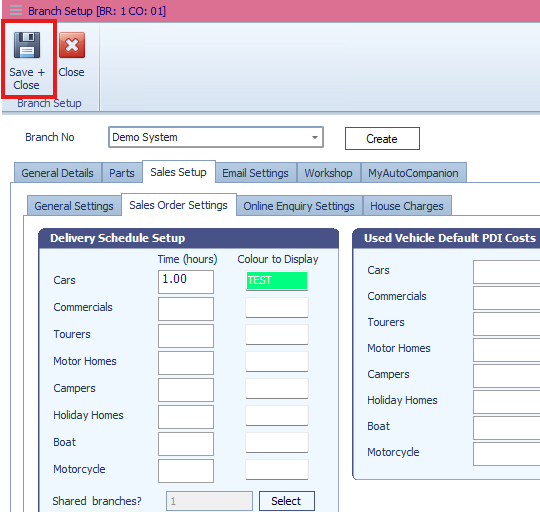
Save Changes: Click Save and Close to apply the settings.
How it Works
Once configured, the system triggers an automated alert every time a sales order is created. The designated recipient will receive an email confirming that a new order has been received, including the relevant order details.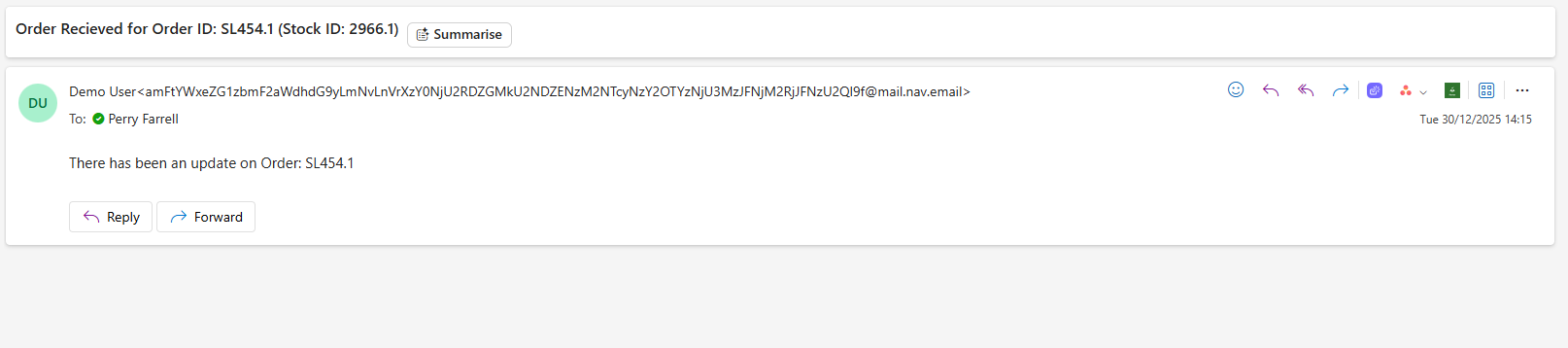
Was this article helpful?
That’s Great!
Thank you for your feedback
Sorry! We couldn't be helpful
Thank you for your feedback
Feedback sent
We appreciate your effort and will try to fix the article