This guide explains how to configure Vehicle Health Check (VHC) templates and email settings.
Use this process to create and maintain consistent VHC inspections, customer communications, and workshop reporting.
A supporting video walkthrough is available alongside this guide.
Why This Matters
Correct VHC template and email configuration:
- Standardises inspection processes.
- Improves communication with customers.
- Ensures technicians follow consistent inspection criteria.
- Supports workshop efficiency.
- Reduces manual administration.
- Improves reporting and authorisation processes.
Before You Start
Make sure:
- You have access to Service Parameters.
- Required email settings have already been configured.
Open the VHC Configuration Area
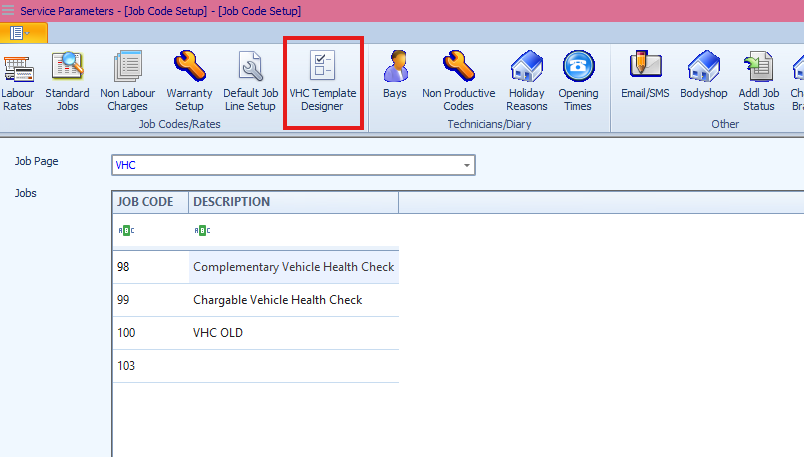
- Open Service Parameters.
- Select VHC Template Designer.
Create or Edit a VHC Template
Select an existing template or create a new template.
Complete the required template fields.
This may include:
- Template description
- Inspection categories
- Inspection items
- Advisory wording
- Technician notes
- Status or colour indicators
These settings define how the VHC inspection is presented and completed.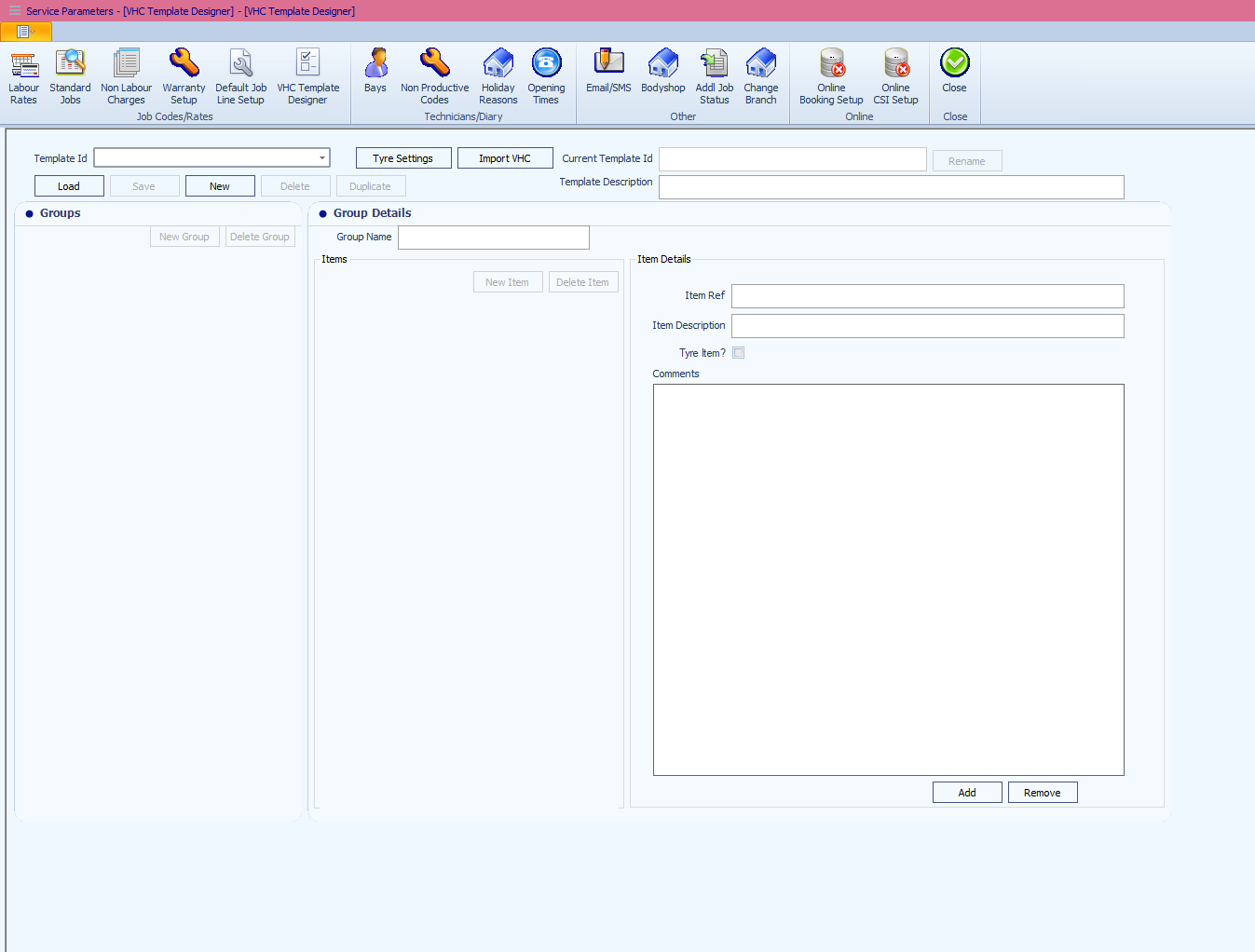
Configure Inspection Categories
Add or update the required inspection categories.
Examples may include:
- Brakes
- Tyres
- Battery
- Suspension
- Lights
- Fluids
Inspection categories help organise the VHC process and improve consistency during vehicle inspections.
Configure Inspection Items
Within each category:
- Add the required inspection items.
- Configure descriptions and advisory wording.
- Configure status indicators if used.
- Save the inspection item.
Inspection items define the checks technicians complete during the VHC process.
Configure Email Settings
Open the email configuration area.
Configure the required communication settings.
This may include:
- Email subject lines
- Default email text
- Sender details
- Customer communication wording
- Report attachment settings
These settings control how VHC information is sent to customers.
Configure Email Templates
Create or update email templates used during the VHC process.
Review:
- Customer-facing wording
- Authorisation messaging
- Inspection summaries
- Contact details
Ensure email wording is clear and consistent before saving.
Save the Configuration
After completing the required setup:
- Review all template and email settings.
- Save or update the configuration.
The VHC templates and communication settings are now available for use.
Troubleshooting
Template Does Not Appear
Check:
- The template has been saved successfully.
- User permissions allow access to templates.
- The template is active.
Inspection Items Are Missing
Check:
- The correct category is selected.
- Inspection items have been saved.
- The latest template version is being used.
Emails Are Not Sending
Check:
- Email configuration settings.
- Sender details.
- SMTP or communication settings.
- Customer email addresses.
Email Formatting Appears Incorrect
Check:
- Template wording and spacing.
- Attachment configuration.
- HTML or formatting settings if used.
Was this article helpful?
That’s Great!
Thank you for your feedback
Sorry! We couldn't be helpful
Thank you for your feedback
Feedback sent
We appreciate your effort and will try to fix the article