This guide explains how to configure standard jobs for Vehicle Health Checks (VHC) within Service Parameters.
Use this process to create reusable VHC job templates with predefined descriptions, job types, pricing structures, and VHC template links.
A supporting video walkthrough is available below to use alongside this guide.
Why This Matters
Configuring standard VHC jobs correctly:
- Creates consistency across workshop processes.
- Reduces manual job setup.
- Standardises labour and pricing structures.
- Ensures VHC templates are applied correctly.
- Improves workshop efficiency and reporting.
Before You Start
Make sure:
- You have access to Service Parameters.
- Required VHC templates already exist.
- Workshop and labour configuration has been completed.
- You have permission to create or amend standard jobs.
Open Job Setup
- Open Workshop > Service Parameters.
- Navigate to Standard Jobs.
- Open the standard job configuration screen.
The system displays the job setup window.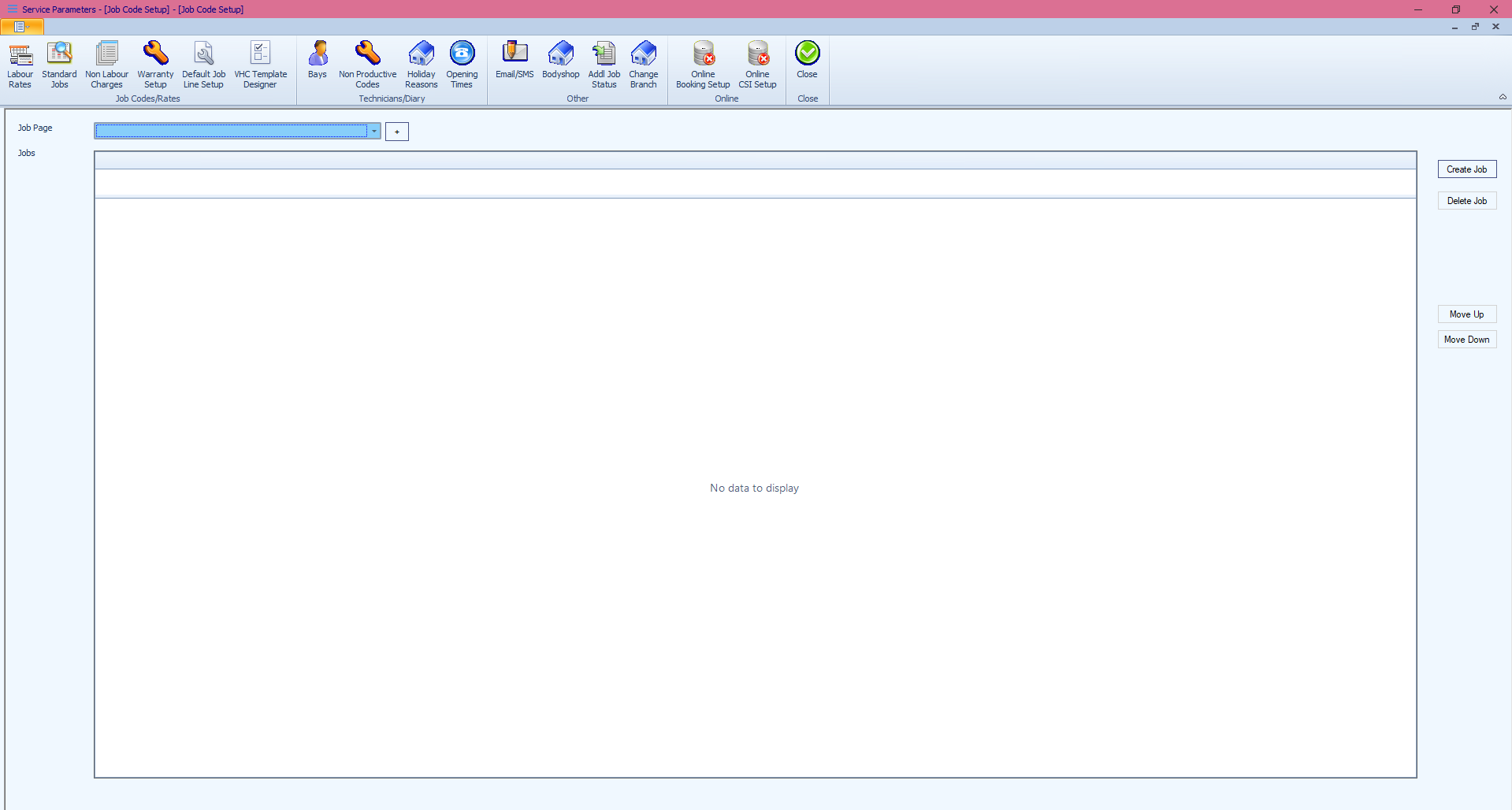
Select the Standard Job
Select your required standard job from the drop down, if it isn't there, you can create one. See article below on how to do this.
Configure the Job Type
Select the appropriate job type for the VHC.
Examples may include:
- Repairs
- PDI
- Service-related job types
The selected job type controls how the job behaves within workshop processing.
Configure VAT and Nominal Codes
Select the required:
- VAT code
- Nominal code
This ensures the VHC job posts correctly for accounting and invoicing purposes. If not entered, it will simply use the system default, please check with your accounts department for this.
Link a VHC Template
Use the VHC Template field to assign the correct template.
Linking a template ensures:
- The correct VHC structure loads automatically.
- Standard inspection items are available.
- Workshop users follow a consistent process.
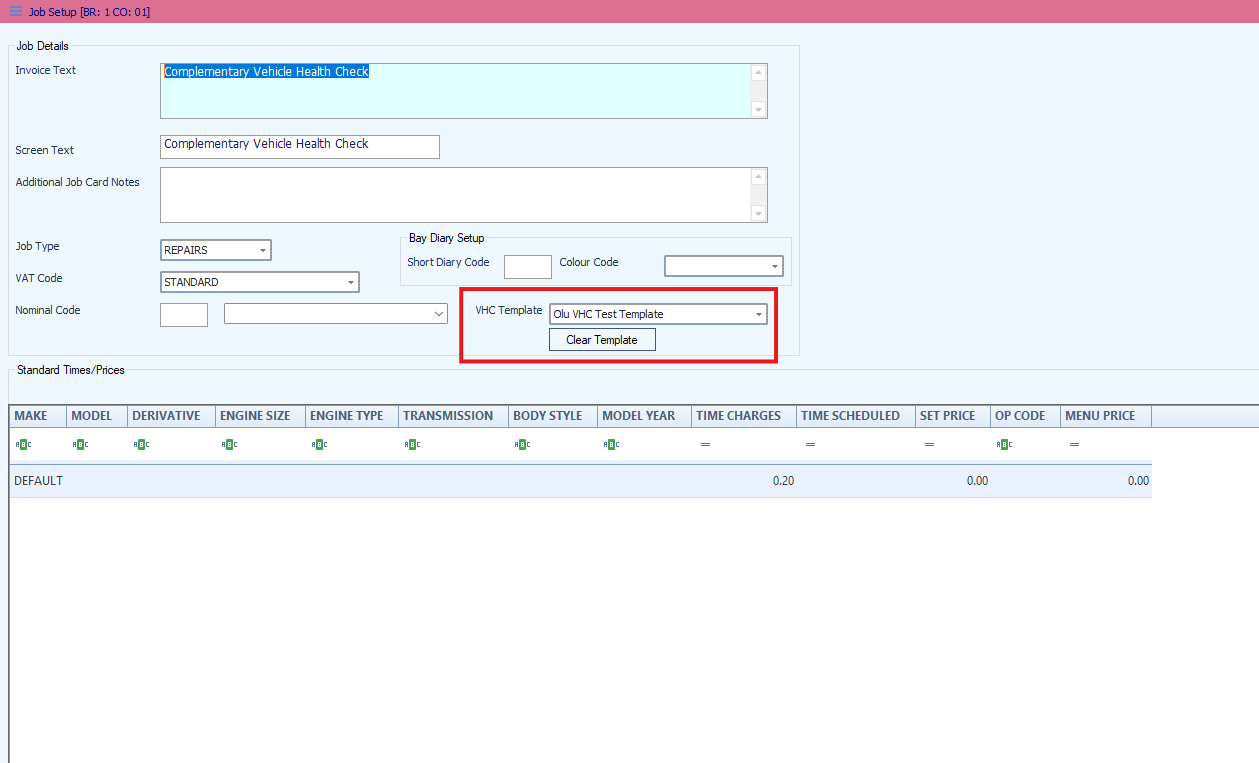
Configure Standard Time and Pricing
In the Standard Times/Prices section:
- Add a new time entry if required.
- Configure labour time.
- Configure pricing values.
- Assign operation codes if used.
These settings determine the labour allocation and pricing applied when the standard VHC job is used.
Save the Configuration
After completing the setup:
- Review all configuration fields.
- Select Update.
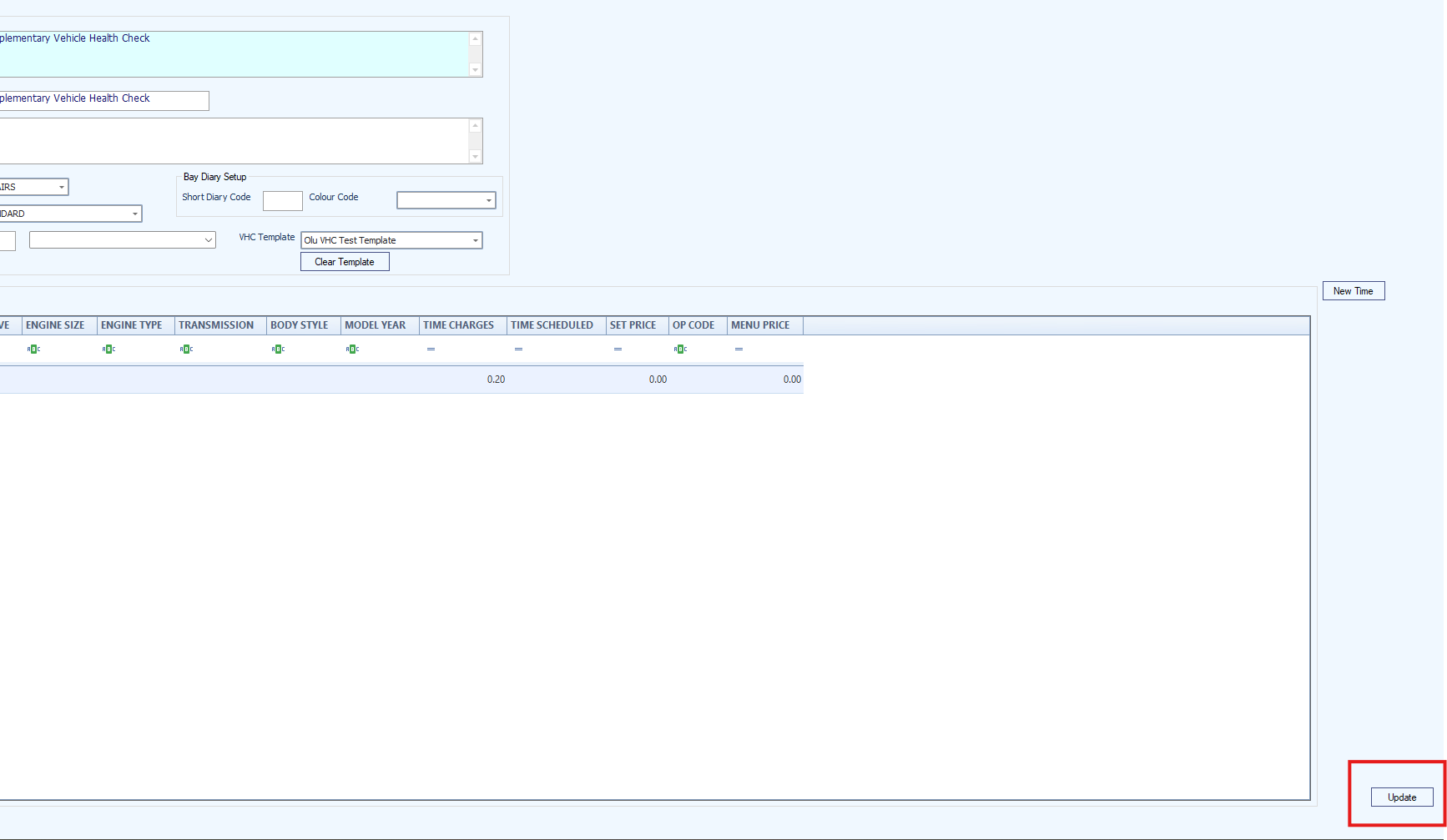
The standard VHC job is now available for workshop use.
Troubleshooting
VHC Template Does Not Appear
Check:
- The template has already been created.
- The template is active.
- User permissions allow access to VHC templates.
Pricing Does Not Apply
Check:
- Standard time entries exist.
- Labour pricing has been configured.
- Operation codes are correct.
Job Does Not Appear in Workshop Processing
Check:
- The job type is configured correctly.
- The setup was updated successfully.
- Workshop users have permission to access the job.
Incorrect VAT or Nominal Posting
Check:
- VAT code configuration.
- Nominal code selection.
- Workshop accounting setup.
Was this article helpful?
That’s Great!
Thank you for your feedback
Sorry! We couldn't be helpful
Thank you for your feedback
Feedback sent
We appreciate your effort and will try to fix the article