You can now delete stock orders directly from the Goods In screen when they are no longer required.
Why This Matters
Removing unwanted stock orders helps:
- Keep order lists organised
- Reduce confusion during goods receipt
- Prevent processing of obsolete orders
- Improve stock control accuracy
How to Delete a Stock Order
- Go to Parts.
- Select Goods In.
- Locate the order you want to remove.
- Single-click the order.
- Press the Delete key on your keyboard.
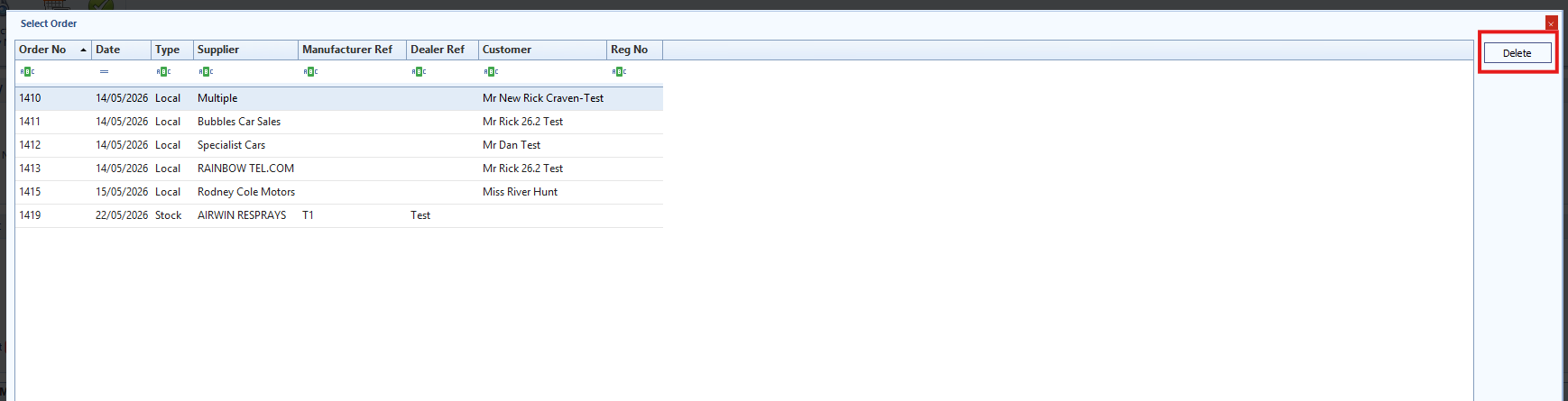
The stock order will be removed from the list.
Result
The selected stock order is deleted and no longer appears in the Goods In order list.
Was this article helpful?
That’s Great!
Thank you for your feedback
Sorry! We couldn't be helpful
Thank you for your feedback
Feedback sent
We appreciate your effort and will try to fix the article