Use the Stock Plan fields on the Purchase tab of the stock record to include a vehicle in the funding feed like Lombard. These fields define which funding scheme applies, when the vehicle appears in the feed, and which value the funder uses for the vehicle.
The funding provider reads this information from the stock record when the feed generates.
Why This Matters
Ensures vehicles appear in the funding provider feed.
Controls when a vehicle enters and leaves the funding plan.
Ensures the correct valuation appears for funding reconciliation.
Prevents missing or incorrect funding data.
Process
Open the required Stock Record.
Select the Purchase tab.
Locate the Stock Plan section.
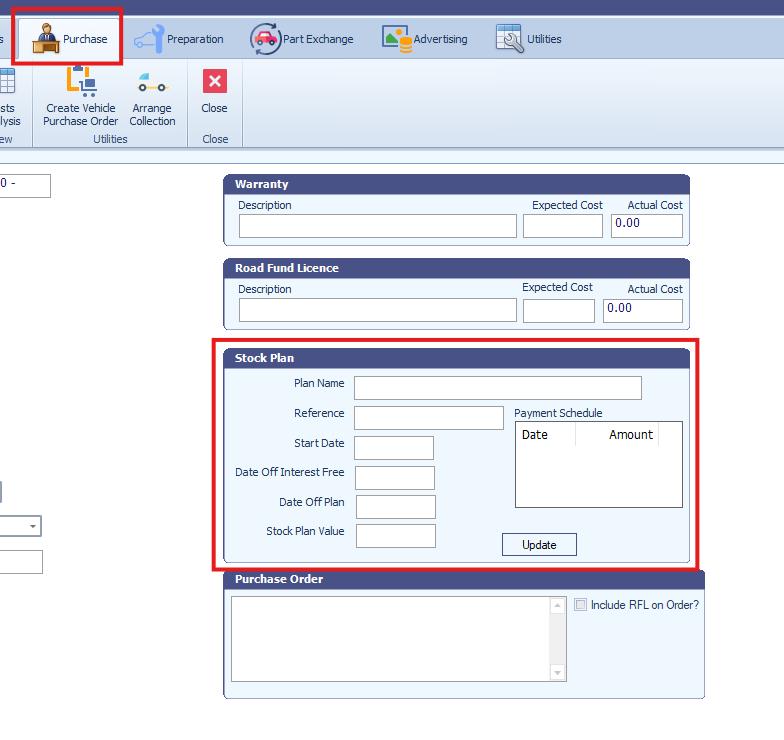
Select the appropriate Stock Plan scheme by Pressing Update and setting with the Stock Plan drop down.

Enter the Start Date for the funding plan.
Enter the End of Plan Date if the vehicle leaves the plan on a specific date.
Enter a Stock Plan Value if the funded value differs from the purchase price, fill in all relevant boxes to get to the Total Value.
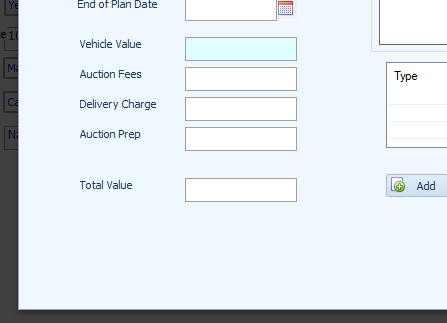
Save by pressing Update.
The vehicle will appear in the funding feed from the start date until the end of plan date, if one is entered. This is sent overnight.
Required Information
Enter the following information to include a vehicle in the funding feed.
Stock Plan : Select the funding scheme used for the vehicle.
Start Date : The date the vehicle enters the funding plan. The vehicle appears in the feed from this date.
End of Plan Date : Optional. If entered, the vehicle remains in the feed until this date. After this date, the vehicle no longer appears in the funding feed.
Stock Plan Value : Optional. If entered, the funding feed uses this value as the purchase price. If empty, the system uses the vehicle Purchase Price instead. The purchase price represents the original purchase value.
Stock Plan Description Format
The stock plan description follows a fixed structure.
NNN / XXXX Description
Where:
NNN - Scheme Number (Field D6 in the funding file schema)
XXXX - Unit Funding Type (Field D9 in the schema)
Description - Name of the stock plan
Example
123 / UNIT Standard Funding
123 represents the scheme number
UNIT represents the unit funding type
Standard Funding represents the scheme description
Important Notes
The vehicle does not appear in the funding feed until a Stock Plan and Start Date exist.
If Stock Plan Value is empty, the funding feed uses the vehicle Purchase Price.
The End of Plan Date removes the vehicle from the funding feed.
Was this article helpful?
That’s Great!
Thank you for your feedback
Sorry! We couldn't be helpful
Thank you for your feedback
Feedback sent
We appreciate your effort and will try to fix the article