This guide explains how to add the Online Service Booking link to ACM email and SMS templates.
Adding the booking link allows customers to book their MOT or service appointment directly from the communication they receive.
You should update all relevant ACM templates to ensure customers always have access to the online booking option.
Before You Start
You will need:
- Access to ACM template editing
- Your Online Service Booking URL
- Permission to edit email and SMS templates
Updating Email Templates
Accessing the Email Template Editor
- Go to Marketing.
- Open NewACM.
- Select Email Template Editor.
Updating the MOT Template
- Open the MOT email template.
- Insert the Online Service Booking URL into the email body.
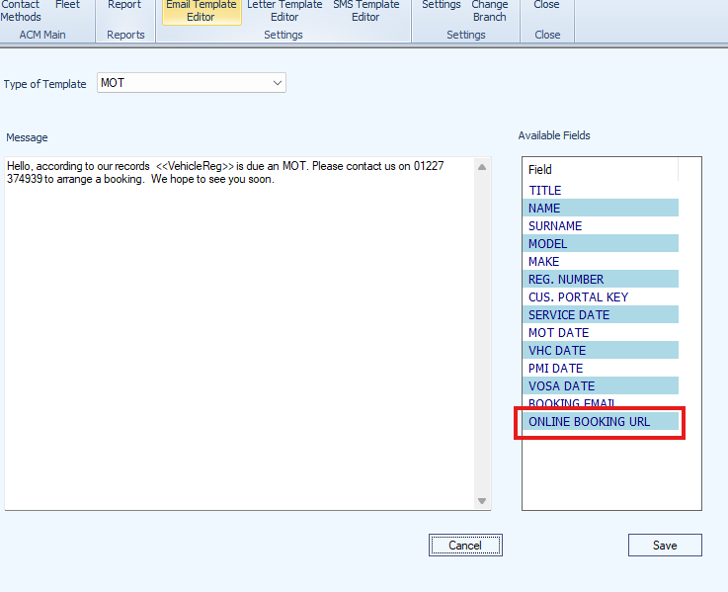
- Position the link where customers can easily access it.
- Save the template.
Updating Additional Templates
Repeat the same process for:
- MOT and Service
- Service Only
Why This Matters
Adding the booking link to email templates gives customers a direct route to book online immediately after receiving a reminder. This improves customer response rates and reduces inbound calls to the service department.
Updating SMS Templates
Accessing the SMS Template Editor
- Open the SMS Template Editor.
Updating the MOT SMS Template
- Open the MOT SMS template.
- Add the Online Service Booking URL to the message.
- Save the template.
Updating Additional SMS Templates
Repeat the same process for:
- MOT and Service
- Service Only
Why This Matters
SMS reminders are often opened quickly after receipt. Including the booking link allows customers to book immediately from their mobile device with minimal effort.
Testing the Templates
After updating the templates:
- Send a test email.
- Send a test SMS.
- Confirm:
- The booking link displays correctly
- The link opens successfully
- Customers are directed to the correct booking page
Why This Matters
Testing ensures customers receive a working booking link and prevents failed bookings caused by incorrect URLs or formatting issues.
Best Practice Recommendations
- Keep the booking link easy to identify within the message
- Avoid placing the link within large blocks of text
- Test links after any future template changes
- Review templates regularly to ensure links remain active
Was this article helpful?
That’s Great!
Thank you for your feedback
Sorry! We couldn't be helpful
Thank you for your feedback
Feedback sent
We appreciate your effort and will try to fix the article