AI Goods In – Faster Parts Processing

Modified on Fri, 28 Aug at 11:34 AM

Navigator’s new AI Goods In function is designed to make bringing parts into stock quicker and easier by reducing the amount of information that needs to be entered manually.


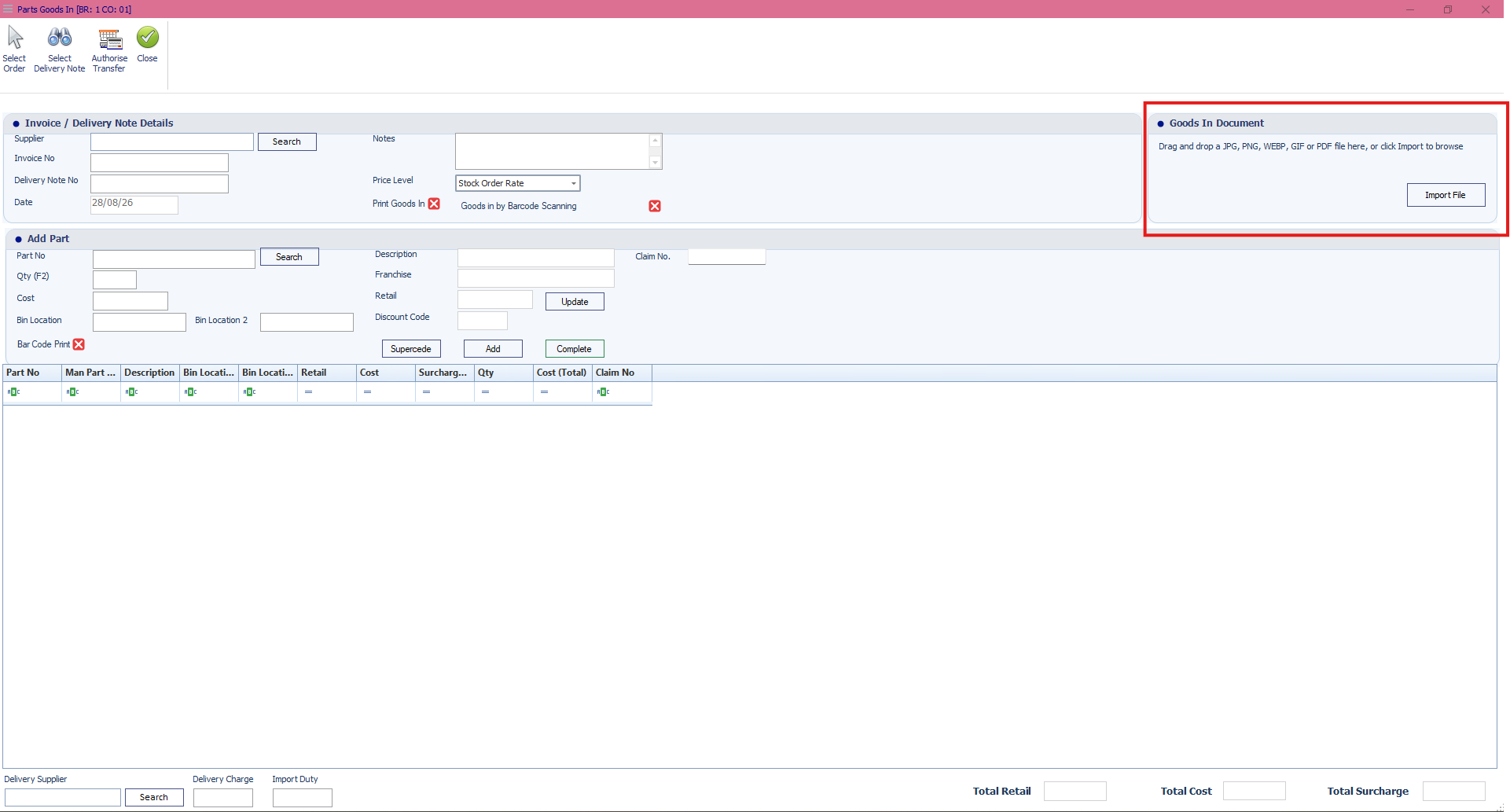
Rather than working through a supplier delivery note line by line, the delivery note can be provided to Navigator and AI will read the document and identify the relevant information for you, ready for the Goods In process.


How to use AI Goods In

  1. Go to Parts > Goods In.
  2. Select the relevant supplier as normal.
  3. In the Goods In Document section, add the supplier’s delivery note. You can either:
    • drag and drop the document into the window, or
    • select Import File and browse to the document.
  4. The AI will analyse the delivery note and identify key information, including:
    • Part numbers
    • Quantities
    • Other relevant information contained within the document
  5. Review the information identified by the AI before completing the Goods In process.

This allows multiple parts to be identified from the supplier documentation quickly, helping to reduce manual entry and speed up the process of bringing parts into stock.


Supported documents

The Goods In Document area supports common document and image formats, including PDF, JPG, PNG and WEBP, allowing you to use either an electronic delivery note or an image of the document.


Want to use AI Goods In?

AI Goods In is an additional Navigator product and is not included as standard.

If you would like to learn more about the feature, including how it could help streamline your Parts Goods In process, please get in touch with us for further information.


Was this article helpful?

That’s Great!

Thank you for your feedback

Sorry! We couldn't be helpful

Thank you for your feedback

Let us know how can we improve this article!

Select at least one of the reasons
CAPTCHA verification is required.

Feedback sent

We appreciate your effort and will try to fix the article