If a BACS payment file does not generate correctly, the download is interrupted, or you simply forget to save the file when completing the payment run, you can regenerate it from within Purchase Ledger.
There is no need to recreate the supplier payments from scratch.
How to regenerate a BACS file
- Go to Purchase Ledger.
- Open Supplier Account.
- Select Rebuild BACS from the top toolbar.
- Select the relevant BACS payment run when prompted.
- Regenerate the file and save the new download to the required location.
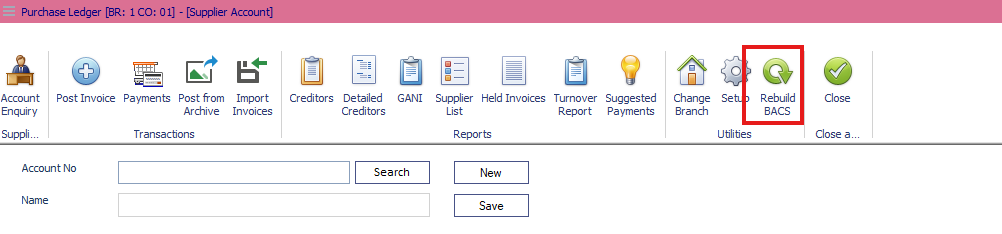
The Rebuild BACS option is intended for situations where the payment run has already been completed but you need another copy of the BACS file.
When would I use Rebuild BACS?
You may need this option if:
- The BACS file failed to generate or download.
- The download was closed or interrupted.
- You forgot to save the BACS file after completing the payment run.
- The original downloaded file has been misplaced and another copy is required.
Rebuilding the BACS file allows you to retrieve the payment file again without having to repeat the original payment process.
Tip: Before uploading the regenerated file to your banking system, make sure you are using the correct BACS run and that the same payment file has not already been submitted to the bank.
Was this article helpful?
That’s Great!
Thank you for your feedback
Sorry! We couldn't be helpful
Thank you for your feedback
Feedback sent
We appreciate your effort and will try to fix the article