Use this process to apply manufacturer-specific operation (OP) codes to standard jobs in the Workshop module. These codes ensure jobs sent to feed providers are coded correctly.
Step-by-Step Guide
1. Open Standard Jobs
Go to the Workshop module.
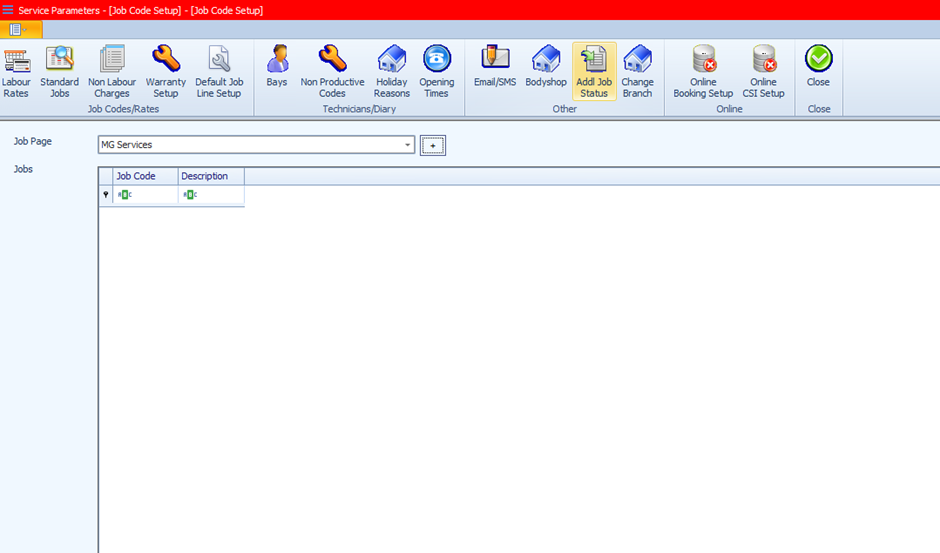
Navigate to Service Parameters.
Select Standard Jobs.
2. Locate or Create a Job Page
Use the drop-down at the top of the screen to find the relevant job page.
If it doesn’t exist, click + to create a new one.
3. Create the Job
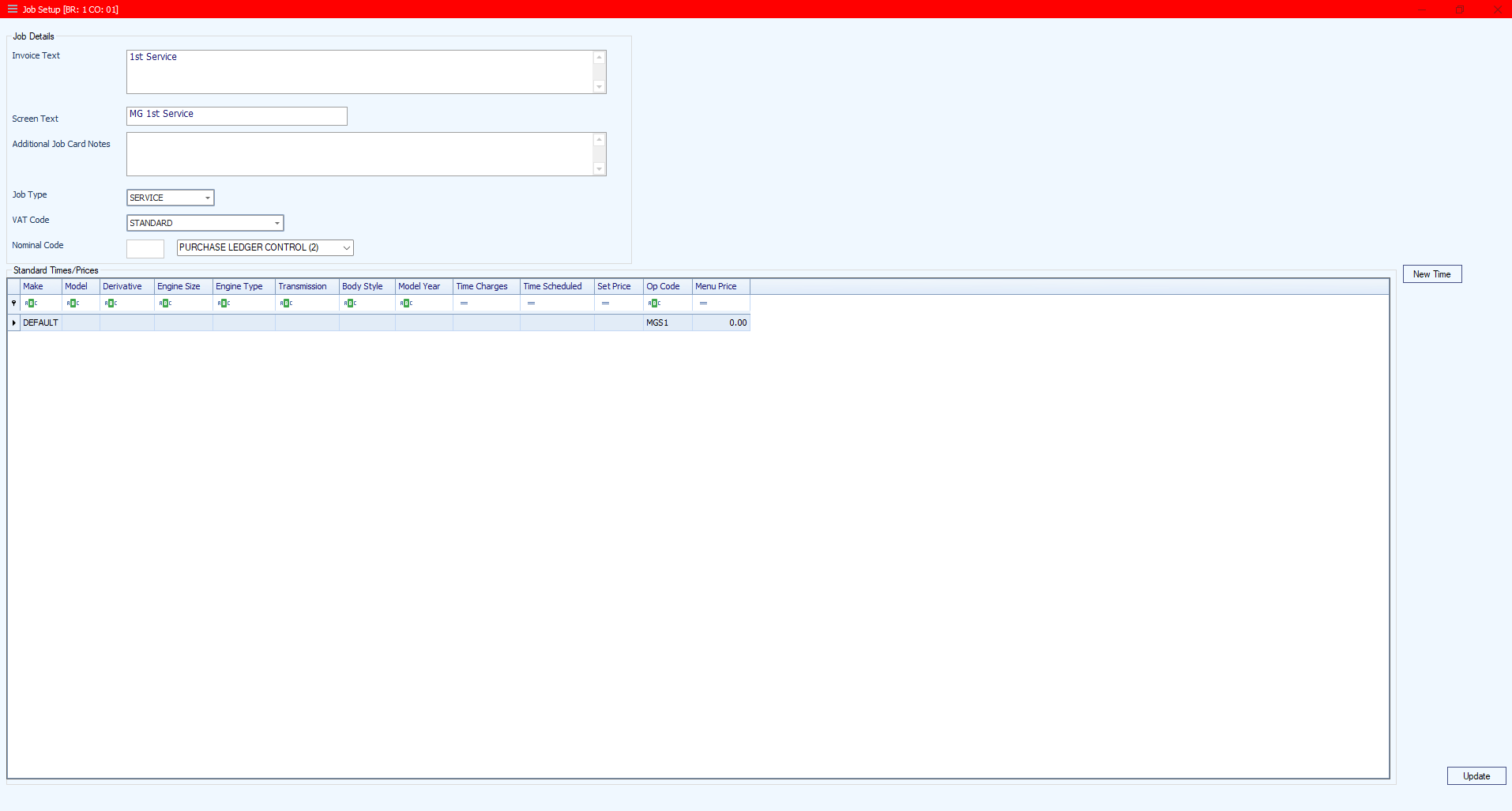
With the job page selected, click Create Job.
Complete the key fields:
Invoice Text – This appears on the customer’s invoice.
Screen Text – This is the job name seen in the system.
Job Type – Choose the type that fits (e.g. Warranty, Retail).
VAT Code – Apply the correct VAT rate.
4. Add the Manufacturer OP Code
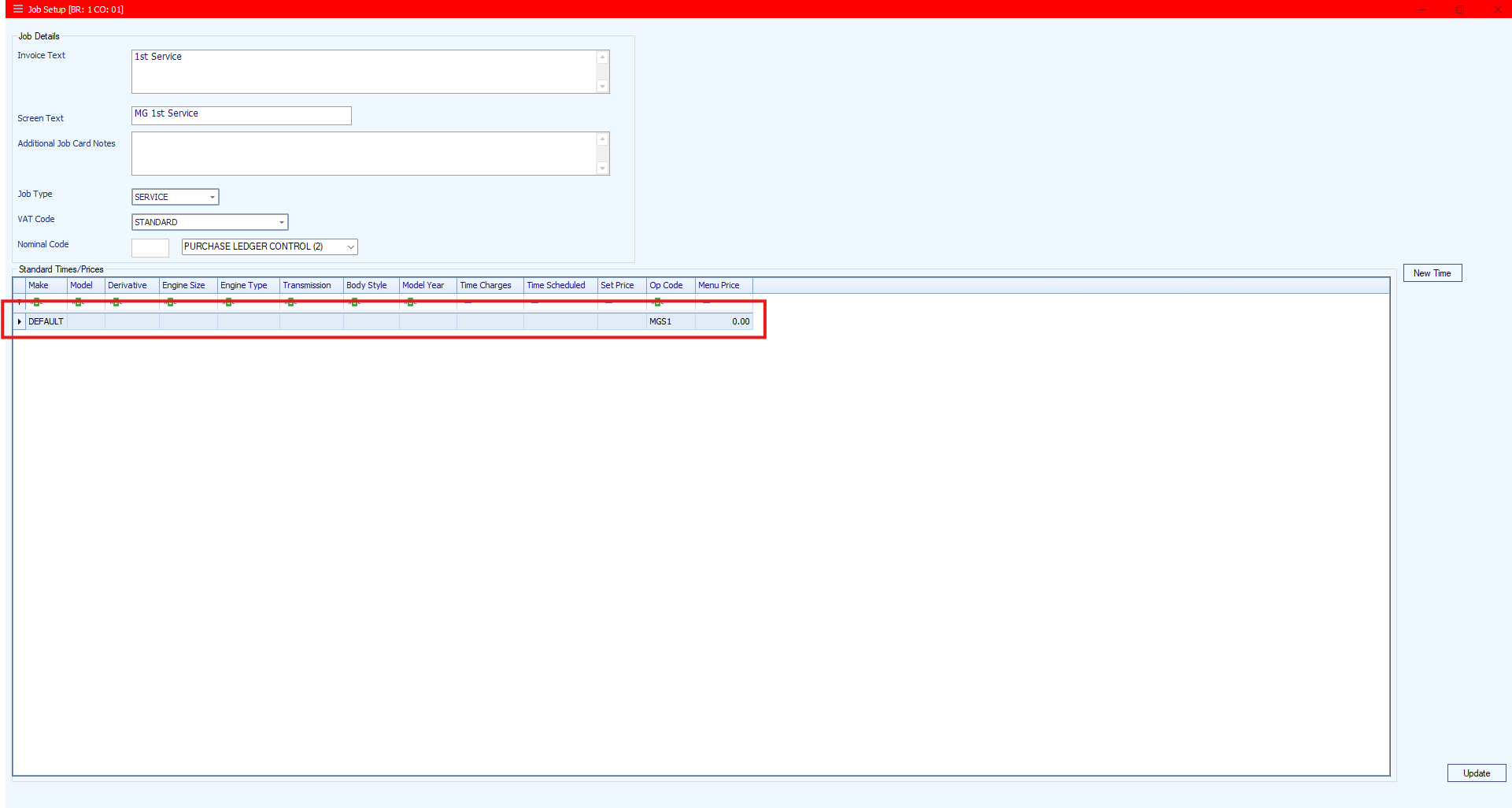
In the new job, find the DEFAULT line.
Double-click the DEFAULT line to edit it.
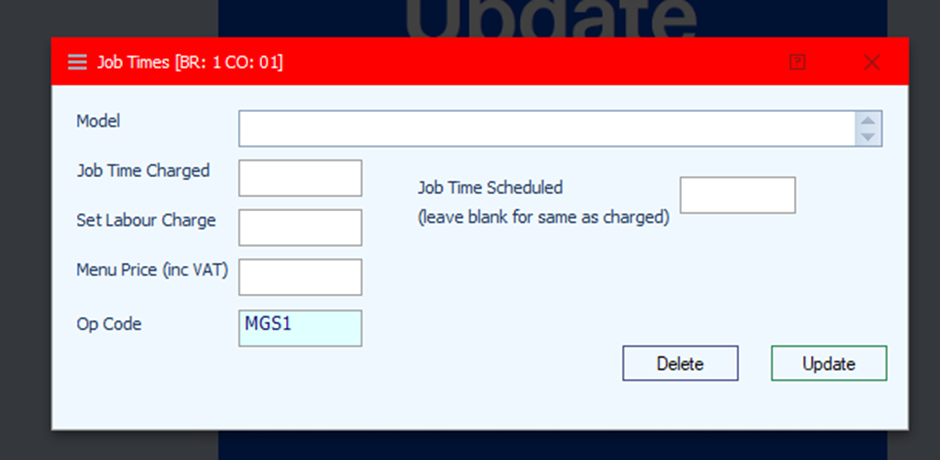
Enter the manufacturer’s OP Code.
5. Save the Job
Click Update to save the DEFAULT line.
Click Update again to complete the job setup.
What Happens Next
Any job created using this standard job will now include the manufacturer’s OP Code by default when sent electronically.
Was this article helpful?
That’s Great!
Thank you for your feedback
Sorry! We couldn't be helpful
Thank you for your feedback
Feedback sent
We appreciate your effort and will try to fix the article