Navigator allows you to create a used vehicle record by importing a purchase invoice. Using AI, Navigator automatically extracts key information from the document and populates the relevant fields, reducing manual data entry.
Important: This functionality is part of our Navigator AI Product Suite and must be enabled before it can be used. Please contact Navigator Support for further information about availability and activation.
How to Import a Used Vehicle
Navigate to Vehicles > Vehicle Admin Toolkit > Used.
Select Import From Document.
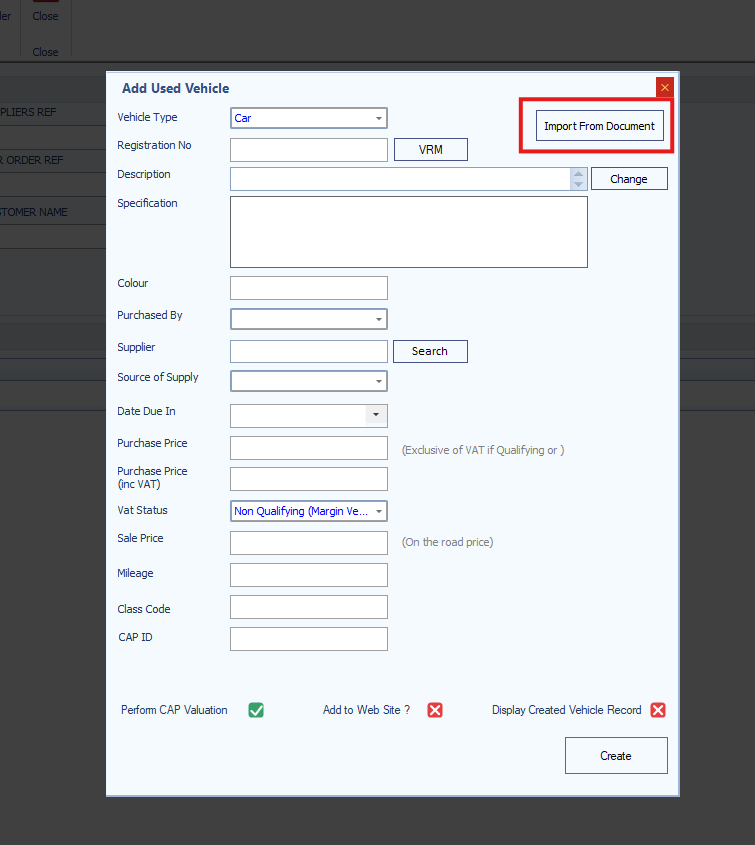
Choose the vehicle purchase invoice you wish to import.
Navigator will use AI to analyse the document and extract the available vehicle and purchase information.
Where information has been identified, the relevant fields on the Add Used Vehicle screen will be populated automatically.
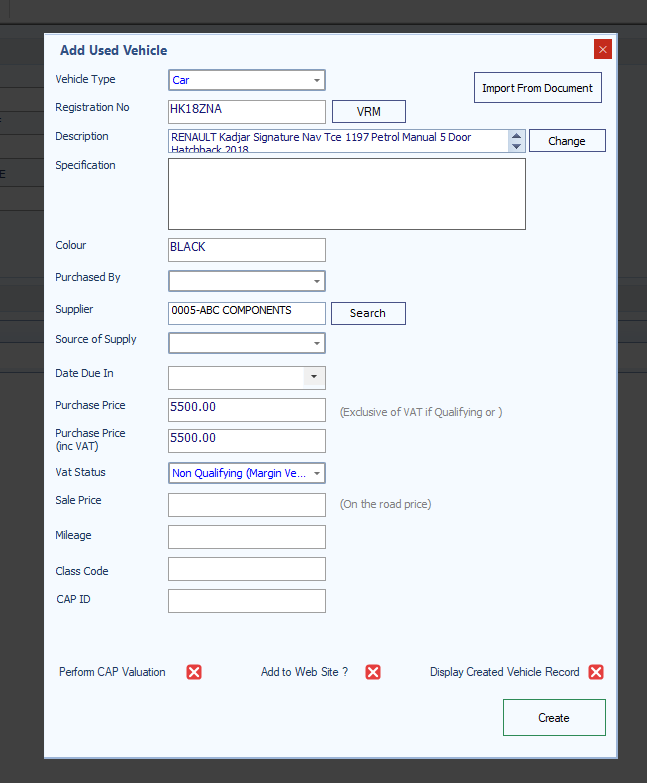
Review the populated information to ensure all details are correct.
Complete any missing fields or amend any information that has not been extracted correctly.
Once you are satisfied that the information is accurate, click Create to create the used vehicle record.
What Information Can AI Extract?
Depending on the information provided on the purchase invoice, Navigator can identify and populate details such as:
Vehicle registration number
Vehicle make and model
Purchase price
Supplier information
Other relevant vehicle or purchase details included in the document
The information extracted will depend on the content and quality of the invoice.
Important Information
Always review the extracted information before creating the vehicle record.
Although AI reduces the need to enter information manually, it is important to check that the vehicle details, purchase price and VAT status are correct.
If information is missing from the invoice or cannot be identified, the relevant fields may remain blank and will need to be completed manually.
Example Purchase Invoice
An example purchase invoice is attached to this guide, which you can use to test the Import From Document functionality.
The sample document contains vehicle details, supplier information and a purchase price, allowing you to see how Navigator extracts and populates the information automatically.
Interested in Navigator AI?
Import From Document is one of the features available within our Navigator AI Product Suite, designed to reduce manual processes and make everyday tasks quicker and easier.
If you would like to enable this functionality or find out more about our AI features, please contact Navigator Support for further details.
Was this article helpful?
That’s Great!
Thank you for your feedback
Sorry! We couldn't be helpful
Thank you for your feedback
Feedback sent
We appreciate your effort and will try to fix the article