Use this process to manage the email and SMS templates sent from the workshop. This keeps customer communication consistent, accurate, and aligned with your business.
Steps
- Go to Workshop
- Select Service Reception
- Click Email/SMS
- Choose the template you want to edit
- Update the subject and message content
- Place your cursor where you want to insert customer data
- Double-click a variable from the list on the right to insert it
- Review the template for accuracy
- Click Save
Using Variables
Variables insert live data into your messages. This includes:
- Customer name
- Vehicle details
- Booking information
Place your cursor in the correct position before inserting a variable. This ensures the message reads clearly.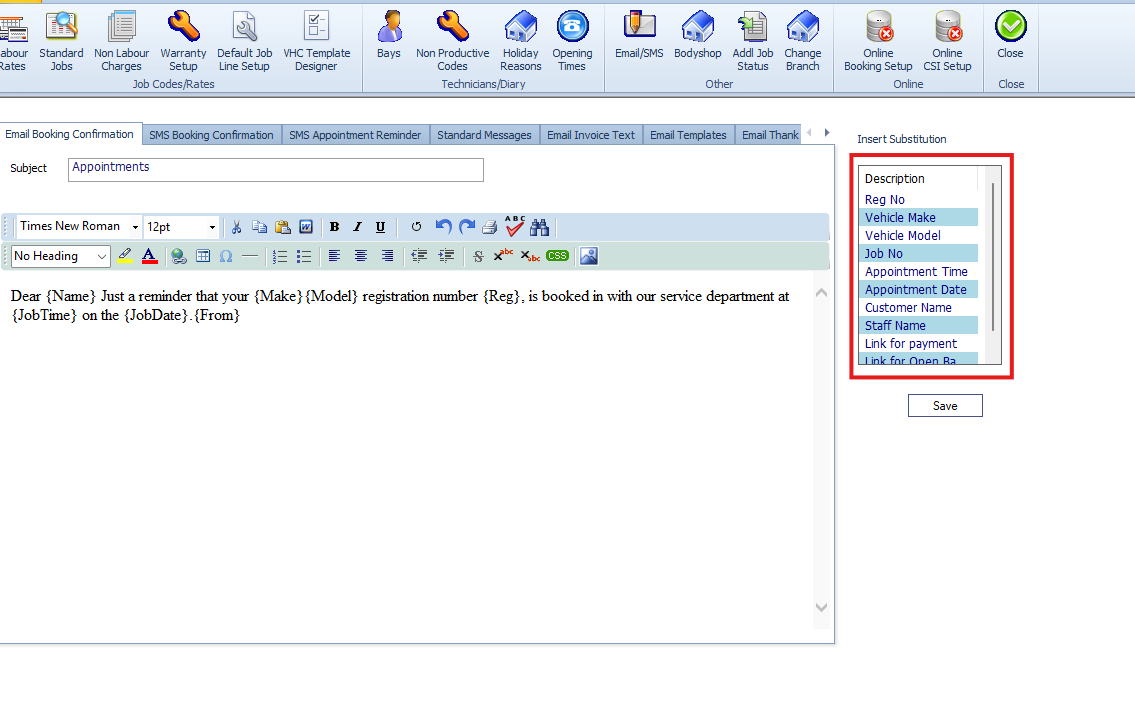
Important Checks Before Saving
- Confirm all wording is clear and professional
- Check variables are placed correctly and make sense in the sentence
- Avoid removing required variables used by the system
- Send a test email if available
Why This Matters
- Keeps customer communication consistent
- Reduces manual typing and errors
- Improves clarity in booking and invoice messages
- Supports a more professional customer experience
Was this article helpful?
That’s Great!
Thank you for your feedback
Sorry! We couldn't be helpful
Thank you for your feedback
Feedback sent
We appreciate your effort and will try to fix the article